The Technical SEO Audit Checklist: 41 Checks in Priority Order

SEO Specialist
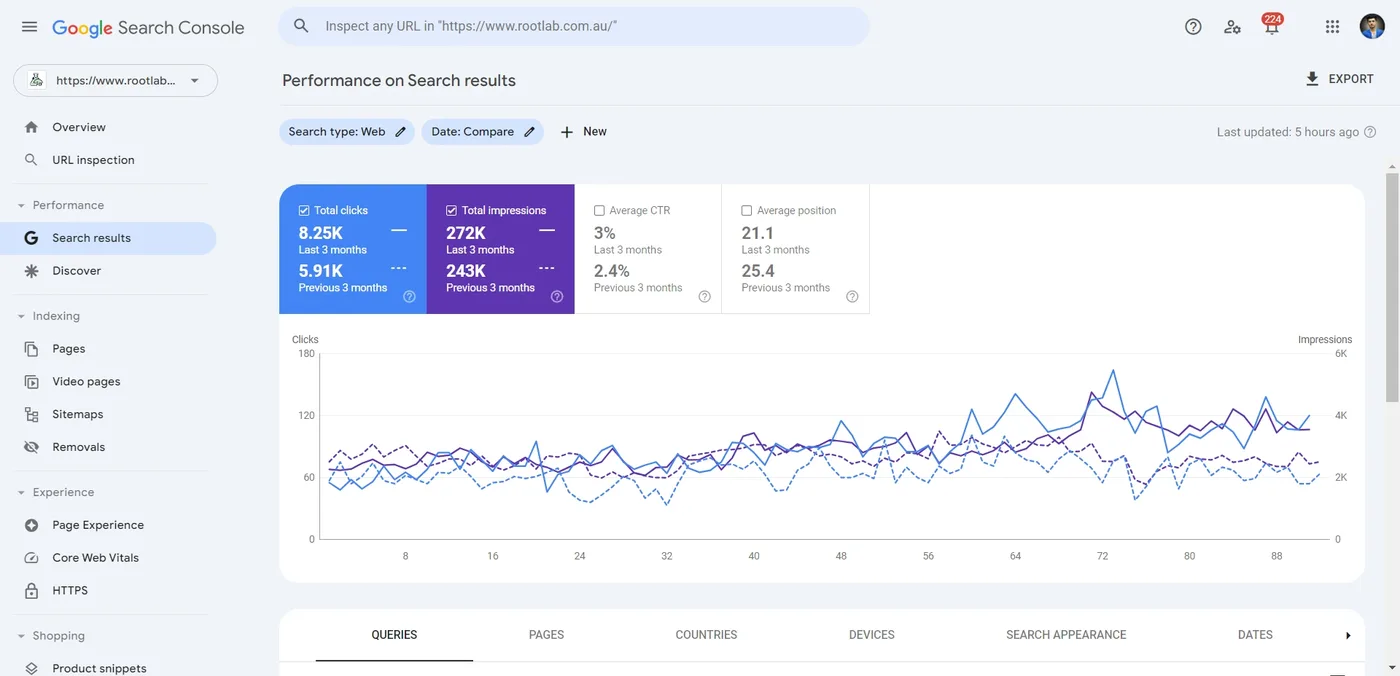
Here’s a pattern I see again and again: a site looks perfect in the browser, the content is good, and traffic still slides. That’s exactly why I open every project with the same technical SEO audit checklist. Then a crawl shows the real story. Old URLs redirecting to the homepage instead of their new versions. A staging noindex tag left live on a template. A sitemap full of pages that no longer exist. None of it is visible to visitors. All of it is visible to Googlebot. On one client site, fixing problems like these grew Google clicks by 40% in three months (8.25K vs 5.91K the quarter before).
That is what a technical SEO audit is for: finding the invisible problems that stop good pages from being crawled, indexed and ranked. This checklist is the exact order I work through on client sites, from the checks that can wipe out traffic overnight to the polish that separates page one from page two. Every item tells you how to check it and what “good” looks like, so you can run the audit yourself.
Key takeaways
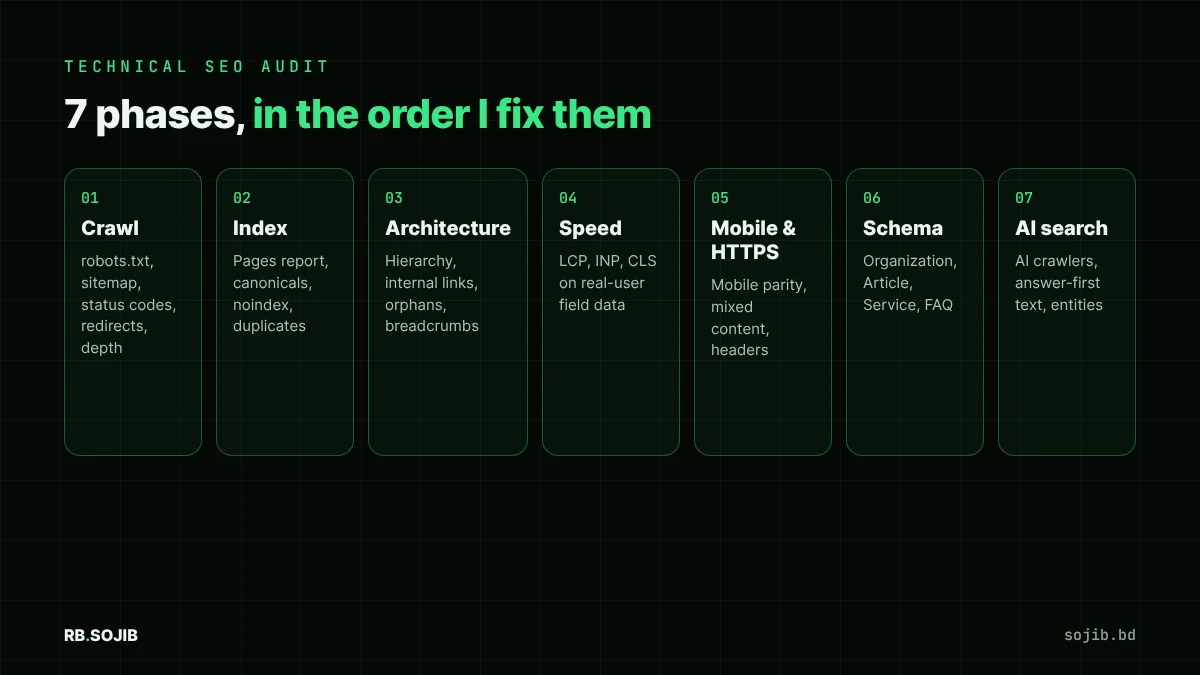
- Audit in priority order: crawling, then indexing, then architecture, then speed. A fast page Google can’t index is worth nothing.
- Google Search Console’s Pages report and a full-site crawl together find over 80% of technical issues.
- Core Web Vitals targets: LCP under 2.5 s, INP under 200 ms, CLS under 0.1, measured on real users (field data), not just lab tests.
- In 2026 an audit also has to check AI search readiness: whether OAI-SearchBot, PerplexityBot and Google-Extended can reach and read your pages.
- Fix by impact, not by count. One wrong canonical on a template can matter more than 500 missing alt tags.
In this guide: What is a technical SEO audit? · How long does a technical SEO audit take? · What you need before you start · Phase 1: Crawlability checks · Phase 2: Indexing checks · Phase 3: Site architecture and internal links · Phase 4: Page speed and Core Web Vitals · Phase 5: Mobile and security · Phase 6: Structured data · Phase 7: AI search readiness · JavaScript and rendering: the checks most audits skip · Log file analysis: see what Googlebot actually does · How to prioritise what you find · Example: how to write up a finding · Printable technical SEO audit checklist · Common technical SEO audit mistakes · After the audit: stop problems coming back · Frequently asked questions · Sources and further reading
Free, with a written report.
Get my free auditWhat is a technical SEO audit?
A technical SEO audit is a structured review of how search engines crawl, render, index and understand your website. It ignores what your content says and focuses on whether the infrastructure lets that content compete: server responses, robots rules, sitemaps, redirects, canonical tags, site architecture, page speed, mobile rendering, HTTPS and structured data.
Think of it as a building inspection. Your content is the furniture. The audit checks the foundation, wiring and doors, because if Googlebot can’t get in, nobody sees the furniture.
How long does a technical SEO audit take?
It depends on the size and complexity of the site, not just the page count. A clean 50-page WordPress site is a few hours of work. A 20,000-product store with filters, multiple languages and a JavaScript front end takes days. Here’s a realistic guide from my own audits:
| Site size | Typical time | Where most issues hide |
|---|---|---|
| Under 100 pages | 3 to 6 hours | Indexing, titles, speed, missing schema |
| 100 to 5,000 pages | 1 to 2 days | Duplicates, redirects, internal linking, thin archives |
| 5,000+ pages or ecommerce | 3 to 5 days | Faceted URLs, crawl budget, canonicals, pagination |
| Multi-language or JavaScript sites | Add 1 to 2 days | hreflang, rendering, content missing from HTML |
What you need before you start
You don’t need expensive software. These four free tools cover a complete audit:
- Google Search Console (Pages, Sitemaps, Core Web Vitals and URL Inspection reports). This is Google’s own view of your site and the single most important source.
- A crawler that visits every URL like a bot. My free technical SEO audit crawls up to 2,000 pages and flags broken pages, redirects, duplicate titles, noindex tags, orphan pages and more.
- PageSpeed Insights for Core Web Vitals field data and lab diagnostics.
- Google’s Rich Results Test for structured data.
Export everything into one sheet with four columns: issue, URLs affected, impact (critical / high / medium) and owner. That sheet becomes your fix plan.

Phase 1: Crawlability checks
If search engines can’t reach a page, nothing else on this list matters. Start here.
- robots.txt is not blocking important sections. Open
yoursite.com/robots.txt. Look forDisallow: /or rules blocking/wp-content/, CSS or JavaScript. Google needs those files to render your pages. - An XML sitemap exists and is submitted. It should contain only canonical, indexable, 200-status URLs. Check the Sitemaps report in Search Console for “Couldn’t fetch” errors.
- Every important page returns a 200 status. Crawl the site and list all 4xx and 5xx responses. Fix or redirect broken URLs that have backlinks or internal links.
- No redirect chains or loops. A to B to C wastes crawl budget and dilutes signals. Every redirect should go straight to the final URL in one 301 hop.
- Important pages are within three clicks of the homepage. Deeply buried pages get crawled less often.
- No orphan pages. Pages in your sitemap that no other page links to are hard for Google to value. Link to them from relevant pages or remove them.
- Content is visible without JavaScript. Use URL Inspection’s “View crawled page” to confirm your main text and links are in the rendered HTML.
- Server response time is under 600 ms. Slow servers make Google crawl fewer pages per visit.
Phase 2: Indexing checks
Crawled doesn’t mean indexed. Google’s Pages report tells you exactly which URLs are excluded and why. These are the reasons I see most often on audits:
- “Crawled – currently not indexed”. Usually thin or near-duplicate content. Merge, expand or noindex these pages.
- “Duplicate without user-selected canonical”. Add a self-referencing
rel="canonical"to every indexable page. - No accidental noindex tags. Search the crawl for
noindexon pages you want ranked. Leftover staging tags are a classic post-launch disaster. - Canonical tags point to the right URL. A canonical pointing to another page tells Google “don’t index me.” Check templates, not just single pages.
- URL parameters don’t create duplicates. Sorting, filtering and tracking parameters should canonicalise to the clean URL.
- HTTP/HTTPS and www/non-www resolve to one version. All variants should 301 to a single preferred host.
- Soft 404s are fixed. Empty category pages or “no results” pages returning 200 should return 404 or get real content.
- hreflang is valid on multilingual sites. Every language version must link to all others, including itself, with matching return links.
Phase 3: Site architecture and internal links
- A logical hierarchy: Home, then category or service hubs, then individual pages. URLs should mirror it (
/services/technical-seo/). - Descriptive internal anchor text. “Technical SEO audit checklist” tells Google more than “click here.”
- No internal links to redirects or 404s. Update them to point at the final URL.
- Breadcrumbs with BreadcrumbList schema on deeper pages.
- Your most important pages get the most internal links. Count internal links per page in your crawl. Money pages should be near the top.
- Pagination and faceted navigation don’t generate thousands of crawlable low-value URLs.
Phase 4: Page speed and Core Web Vitals
Core Web Vitals are a confirmed ranking signal, and more importantly they decide whether visitors stay. Always judge them on field data (real Chrome users, shown in Search Console and the top of PageSpeed Insights), because lab scores alone can be misleading.
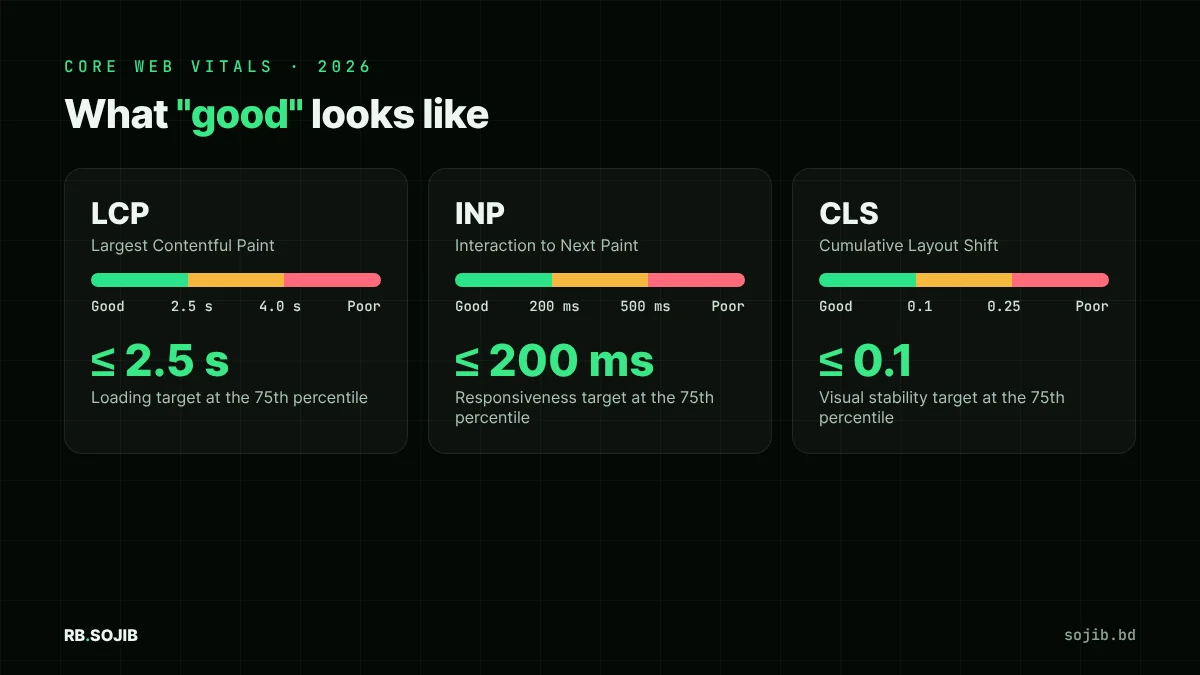
- LCP (Largest Contentful Paint) under 2.5 s. Preload the hero image, serve WebP or AVIF, and remove render-blocking CSS and fonts.
- INP (Interaction to Next Paint) under 200 ms. INP replaced FID in 2024. Break up long JavaScript tasks, defer third-party scripts and trim heavy page builders.
- CLS (Cumulative Layout Shift) under 0.1. Set width and height on images, reserve space for ads and embeds, and avoid late-loading fonts that reflow text.
- Images are compressed and lazy-loaded below the fold, but never the LCP image.
- Text compression (Gzip or Brotli) and browser caching are switched on.
- Total page weight stays reasonable. I aim for under 1.5 MB on mobile for service pages.
Real example: on my own site, a typing animation in the hero caused a layout shift score of 0.14. A two-line CSS fix took it to 0.00, and mobile performance went from 86 to 91.
Phase 5: Mobile and security
- Mobile-first parity: the mobile version contains the same content, headings, links and structured data as desktop. Google indexes the mobile version.
- Viewport meta tag is set, text is readable without zooming, and tap targets aren’t cramped.
- HTTPS everywhere, with a valid certificate and no mixed content (HTTP images or scripts on HTTPS pages).
- Security headers (HSTS, X-Content-Type-Options, Referrer-Policy) are in place. They’re not ranking factors, but they protect users and trust.
- No intrusive interstitials covering content on mobile.
Phase 6: Structured data
- Organization or LocalBusiness schema on the homepage, with logo, contact details and
sameAsprofile links. - Article, Product, Service, FAQPage or BreadcrumbList where they match the visible content. Never mark up content users can’t see.
- Zero errors in the Rich Results Test and the Enhancements reports in Search Console.
Need markup fast? My free schema markup generator builds valid JSON-LD for ten types.
Phase 7: AI search readiness
Most published checklists stop at Phase 6. But in 2026 a growing share of discovery happens inside ChatGPT, Perplexity, Gemini and Google’s AI Overviews. These checks decide whether AI assistants can find and quote you:
- AI crawlers are allowed in robots.txt: OAI-SearchBot (ChatGPT search), PerplexityBot, Google-Extended and ClaudeBot, unless you have a reason to block them.
- Key facts are in plain HTML text, not only in images, sliders or tabs that load later.
- Pages answer questions directly in the first one or two sentences under each heading. AI systems prefer passages they can lift cleanly.
- Entity consistency: your business name, address and description match across your site, Google Business Profile, Bing Places and directories.
- An
llms.txtfile is optional but cheap: a plain-language map of your most important pages.
You can check all of this in one go with my AI search readiness checker.
JavaScript and rendering: the checks most audits skip
Google can render JavaScript, but it does it later and not always completely. Most AI crawlers, including the ones behind ChatGPT and Perplexity, don’t render JavaScript at all. If your main content, links or schema only appear after scripts run, some search engines simply never see them.
- Compare raw HTML with the rendered page. View the page source (not Inspect) and search for a sentence from your main content. If it isn’t there, it depends on JavaScript.
- Use the URL Inspection tool in Search Console and open “View crawled page” to see exactly what Googlebot rendered.
- Make sure navigation uses real
<a href>links, not click handlers on buttons or divs. Google only follows real links. - Check lazy-loaded content, such as reviews and product grids, loads without scrolling or clicking.
Log file analysis: see what Googlebot actually does
A crawler shows you what could be crawled. Server logs show what Googlebot actually crawled, how often, and what responses it got. On larger sites this is where the biggest surprises come from.
- Find wasted crawls: Googlebot hitting parameter URLs, old redirects or internal search pages thousands of times a day.
- Find neglected pages: important pages Googlebot hasn’t visited in weeks are rarely ranking well.
- Spot server errors (5xx) and slow responses that only appear under crawler load.
- No log access? The Crawl Stats report in Search Console (Settings → Crawl stats) gives a useful summary by response code and file type.
How to prioritise what you find
An audit that produces a 300-row spreadsheet and no plan is useless. I score every issue on impact and effort, then fix in this order:
| Priority | Typical issues | Fix within |
|---|---|---|
| Critical | Site-wide noindex, robots.txt blocking, 5xx errors, wrong canonicals on templates, HTTPS broken | 24 to 48 hours |
| High | Redirect chains, 404s with backlinks, duplicate content, poor LCP or INP on key templates, orphan money pages | 1 to 2 weeks |
| Medium | Missing schema, thin pages, internal link gaps, image weight, missing alt text | Next sprint |
| Low | Security headers, minor title length issues, cosmetic markup warnings | When convenient |
Example: how to write up a finding
An audit is only useful if someone acts on it. I write every finding so that a developer can fix it without a meeting and a manager can understand why it matters. Here’s the format:
| Issue | 38 blog posts return a canonical pointing to page 1 of the blog archive |
|---|---|
| Evidence | Crawl export plus URL Inspection: “Google chose a different canonical than the user” |
| Impact | These posts can’t rank; they held 14% of organic clicks last year |
| Fix | Change the theme’s canonical function to use the post’s own permalink |
| Owner and effort | Developer, about 1 hour |
| How to verify | Recrawl, then request indexing for 5 sample posts and check them in 7 days |
Printable technical SEO audit checklist
Tick items as you go. Your progress stays in this browser tab until you close it.
Common technical SEO audit mistakes
- Auditing only the homepage. Most technical problems live in templates: category pages, blog archives, product variants. Always crawl the whole site.
- Chasing tool scores instead of Search Console data. A 100/100 audit score means nothing if Google’s Pages report shows half your URLs excluded.
- Fixing symptoms, not templates. If 400 pages have the same problem, fix the template once.
- Never re-auditing. Plugins update, developers push changes, and new issues appear. Re-crawl monthly and after every launch or migration.
After the audit: stop problems coming back
Most technical issues come back through routine changes: a plugin update, a new template, a developer pushing staging settings live. A light monitoring routine catches them before rankings move:
- Weekly: check the Pages report in Search Console for sudden jumps in “Excluded” or “Not found” URLs.
- Monthly: run a crawl and compare it with the last one: new redirects, new 404s, changed canonicals, missing titles.
- Before every release: test robots.txt, noindex tags and canonicals on staging, and check them again on live within an hour.
- Quarterly: review Core Web Vitals field data and the Crawl Stats report.
Frequently asked questions
How often should I run a technical SEO audit?
Run a full audit every quarter, and a quick crawl plus a Search Console check every month. Always audit before and after a redesign, migration, CMS change or major plugin update.
How long does a technical SEO audit take?
For a 50-page business site, 3 to 5 hours. For an e-commerce store with thousands of URLs, two to five days, mostly spent analysing templates and prioritising fixes rather than crawling.
What is the difference between a technical SEO audit and an on-page SEO audit?
A technical audit checks whether search engines can crawl, render and index your site. An on-page audit checks whether each page’s content, titles, headings and internal links match what searchers want. You need both. Here’s my on-page SEO checklist for the second half.
Can I do a technical SEO audit for free?
Yes. Google Search Console, PageSpeed Insights and the Rich Results Test are free, and my free full SEO audit crawls every public page and emails a signed report.
Do Core Web Vitals really affect rankings?
They’re a confirmed but modest ranking signal, mostly a tie-breaker between pages of similar relevance. Their bigger impact is on conversions: faster, stable pages keep more visitors and turn more of them into leads.
Can I do a technical SEO audit myself?
Yes, for small sites. Work through the checklist above with Search Console and a crawler, and fix the critical items first. Bring in a specialist when problems involve migrations, JavaScript rendering, large ecommerce catalogues or international sites, where a wrong fix can cost more than the original problem.
Is an audit tool report the same as a technical SEO audit?
No. Tools flag hundreds of possible issues without knowing which ones matter for your business. An audit confirms each issue, removes false alarms, ranks them by impact and explains the fix. The tool is the starting point, not the result.
Sources and further reading
- Google Search Central: crawling and indexing: how Googlebot discovers, crawls and indexes pages
- Consolidate duplicate URLs: Google’s guidance on canonical tags
- Core Web Vitals: official LCP, INP and CLS thresholds
- JavaScript SEO basics: how Google renders JavaScript pages
- Structured data introduction: schema formats and rich result rules
- Rich Results Test: validate your schema markup
Written by RB Sojib, SEO expert in Bangladesh with 7+ years of hands-on work on technical, on-page and local SEO for businesses in the USA, UK, Europe and Australia. I audit and fix WordPress, Shopify and custom sites myself, and every checklist on this site comes from client work, not theory.
168 verified reviews on Fiverr (4.9★) · LinkedIn · Published October 31, 2026 · Last updated November 1, 2026 · Reviewed against Google Search Central documentation
Want an expert to run this audit for you? I’ll crawl your full site, pull your Search Console data and hand you a prioritised fix plan, then fix it with you.